

Euka Secondary Student Portal Walkthrough
The Secondary Student Portal is where the learning happens for Grade 7 to Grade 10. The portal provides everything you need for your learning journey and tracking progress.
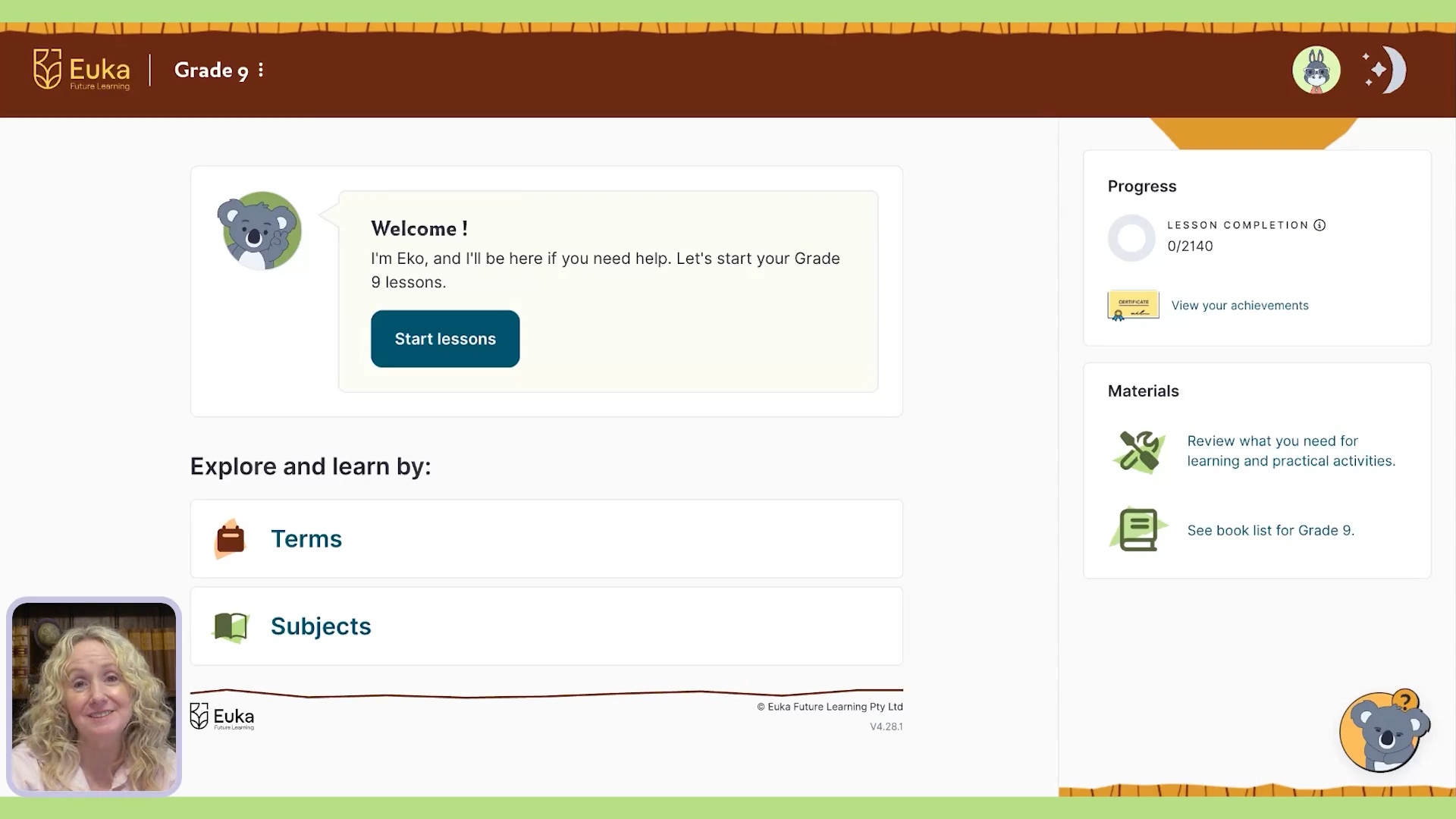
Meet Eko!
Eko is the Euka mascot and your child’s friendly companion inside the portal. You’ll spot him in two places:
- The home screen: Eko points you towards your lessons and shares helpful information as you navigate the portal.
- The help widget: This is your support tool. From here you can get extra help, submit feedback, or flag anything that needs attention.

Your home base
This is the screen your child sees each time they log in.
It’s their grade dashboard, and what appears here will change depending on the grade they’ve selected.Everything starts here.
At the top, you’ll find their avatar and grade selector, Eko’s fun fact of the day, the Progress panel on the right, and their Materials list in the bottom corner. If your child is enrolled in more than one grade, simply use the grade selector beside the Euka logo to switch between the.
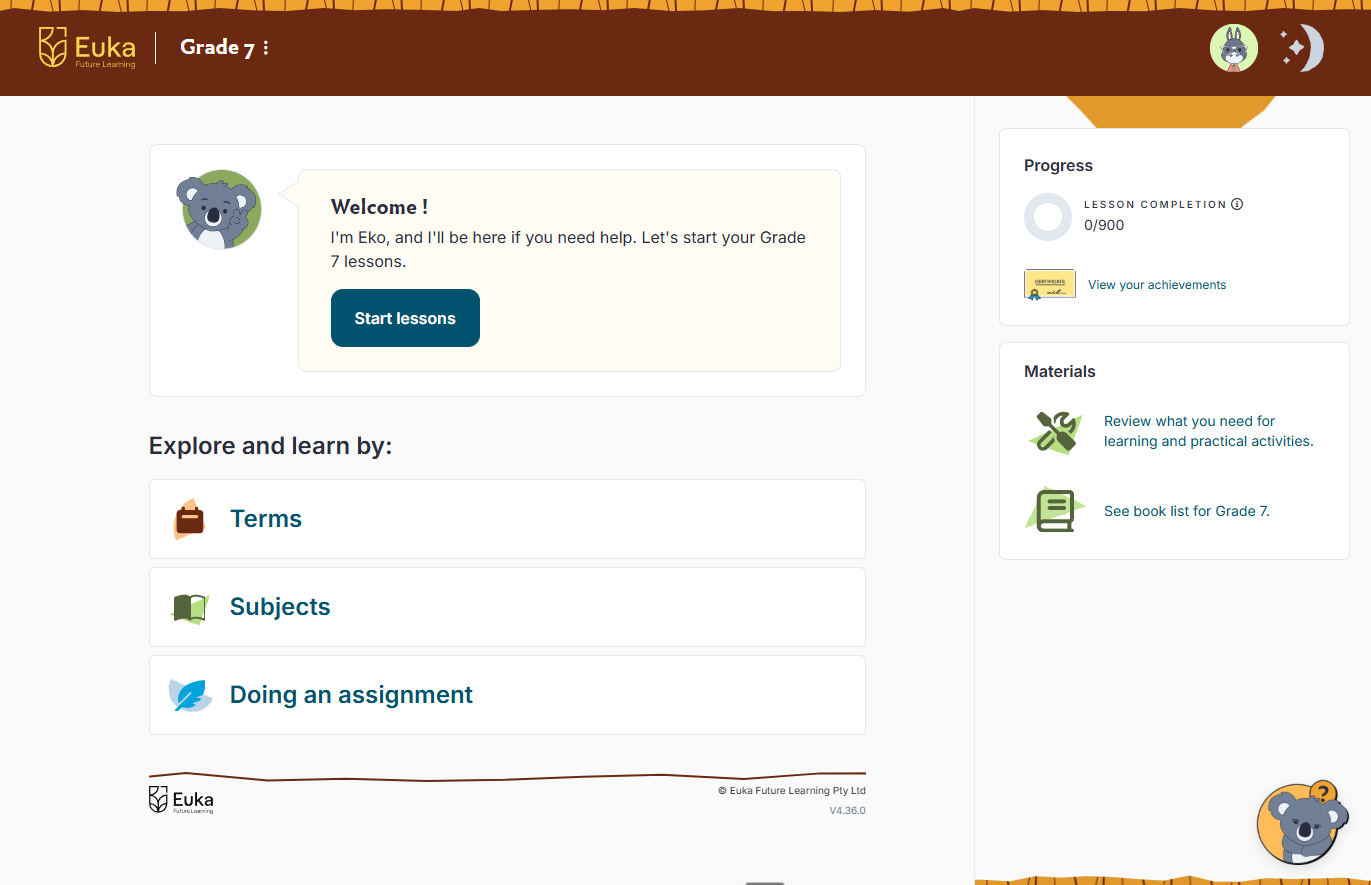
Making the portal your own
One of the first things your child can do when they log in is make the portal feel like theirs. They can update their avatar, password and preferred portal view from the settings area.
At secondary level that sense of ownership matters. Students who feel in control of their learning tend to engage more confidently with the content.
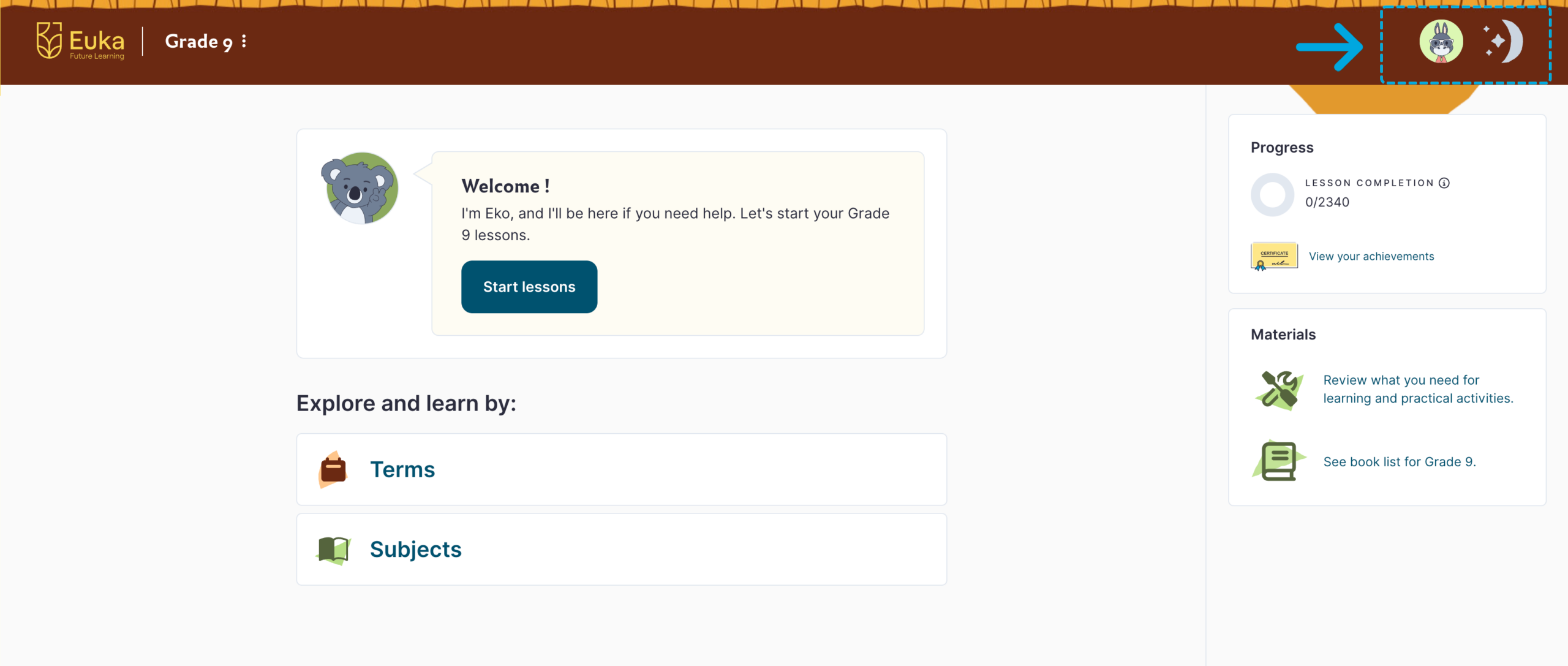

Choose an avatar
Click the avatar at the top of the screen, select Change Avatar, and pick from Australian animal characters or colours.
Day & night mode
A toggle at the top of the screen switches between day and night views. Different students work better in different settings, this is one simple way to make the portal work for them.
The Materials List: what you actually need
The Materials List sits in the bottom corner of the home page. Check it before the start of each term so there are no last-minute surprises. Inside you’ll find three lists:
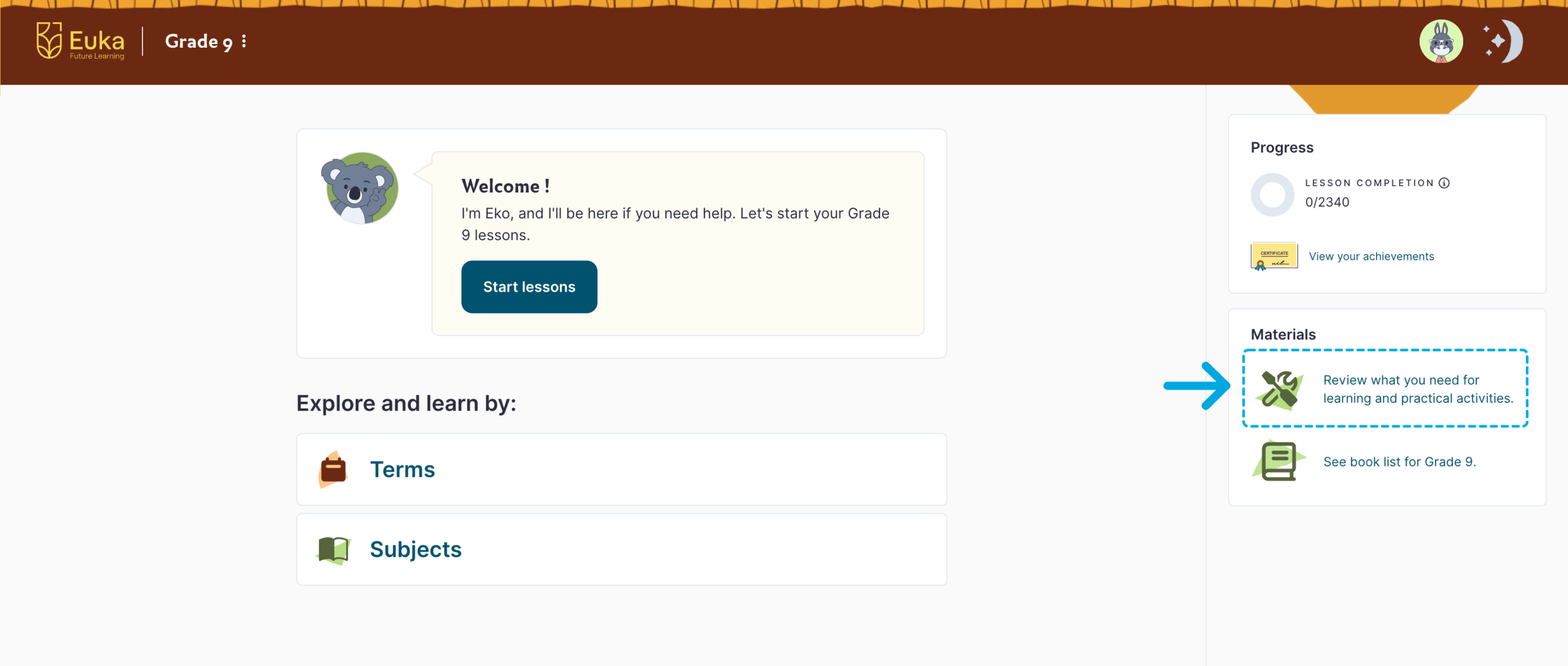
The Essential List
The everyday items your child needs across most lessons, coloured pencils, pens, rulers, highlighters. The same stationery they’d take to school. Adapt or substitute where needed.
The Practical List
Every lesson includes a hands-on practical component. This list covers the materials that could be needed across those activities for the term. Check at the start of each week.
The Book List
Applies to English. Each term is built around one novel, four novels across the year. Buy them, borrow from the library, or listen via an audiobook tool of choice.
Tracking progress and earning certificates
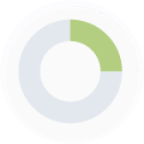
The progress panel
The lesson completion indicator shows how much of the learning content and activities your child has covered. The same tracker appears inside each term and week, so there’s always a clear picture of where they are.
Achievement certificates
As each term is completed, a certificate becomes available to download. Once all four terms are finished, the full-year grade certificate unlocks too. Worth printing and keeping.
How lessons are organised
Lessons can be viewed in two ways, switch between them at any time depending on what works best for your family.
Each term is laid out with a ‘Start lessons’ button, open the current term and away you go.
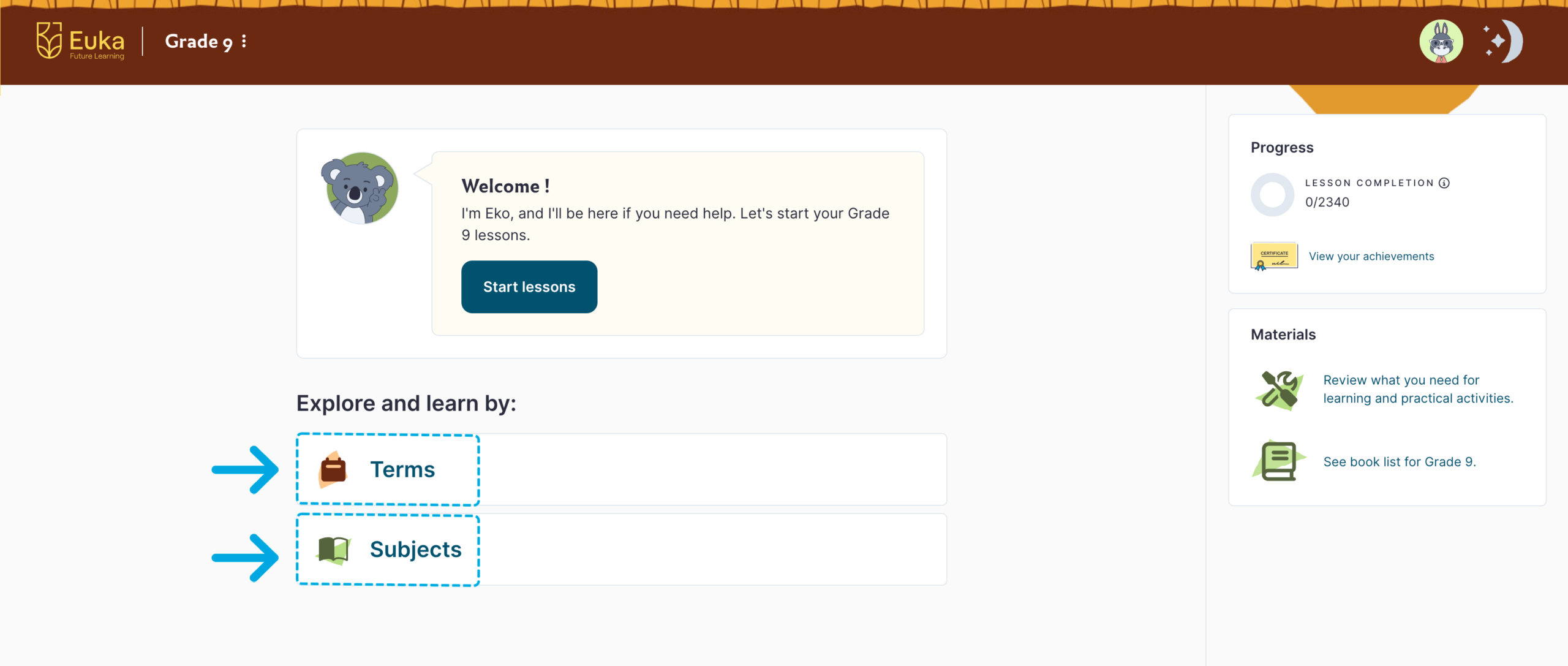
By Term
The view most families use. Four terms of ten weeks. Each week: 5 English, 5 Maths, and 1 of each other subject. Grades 7 to 8 cover two core subjects; Grades 9 to 10 cover one core subject and one elective.
By Subject
If your child works better focusing on one subject at a time, this view allows for that. Lessons are still organised by term and week within each subject, the same content, a different entry point.
The Lesson Structure
This is Euka’s four-stage lesson model, a gradual-release structure that moves a student from receiving knowledge to owning it. Each lesson is built around these phases. They map directly onto the lesson sections in the platform as you see below.
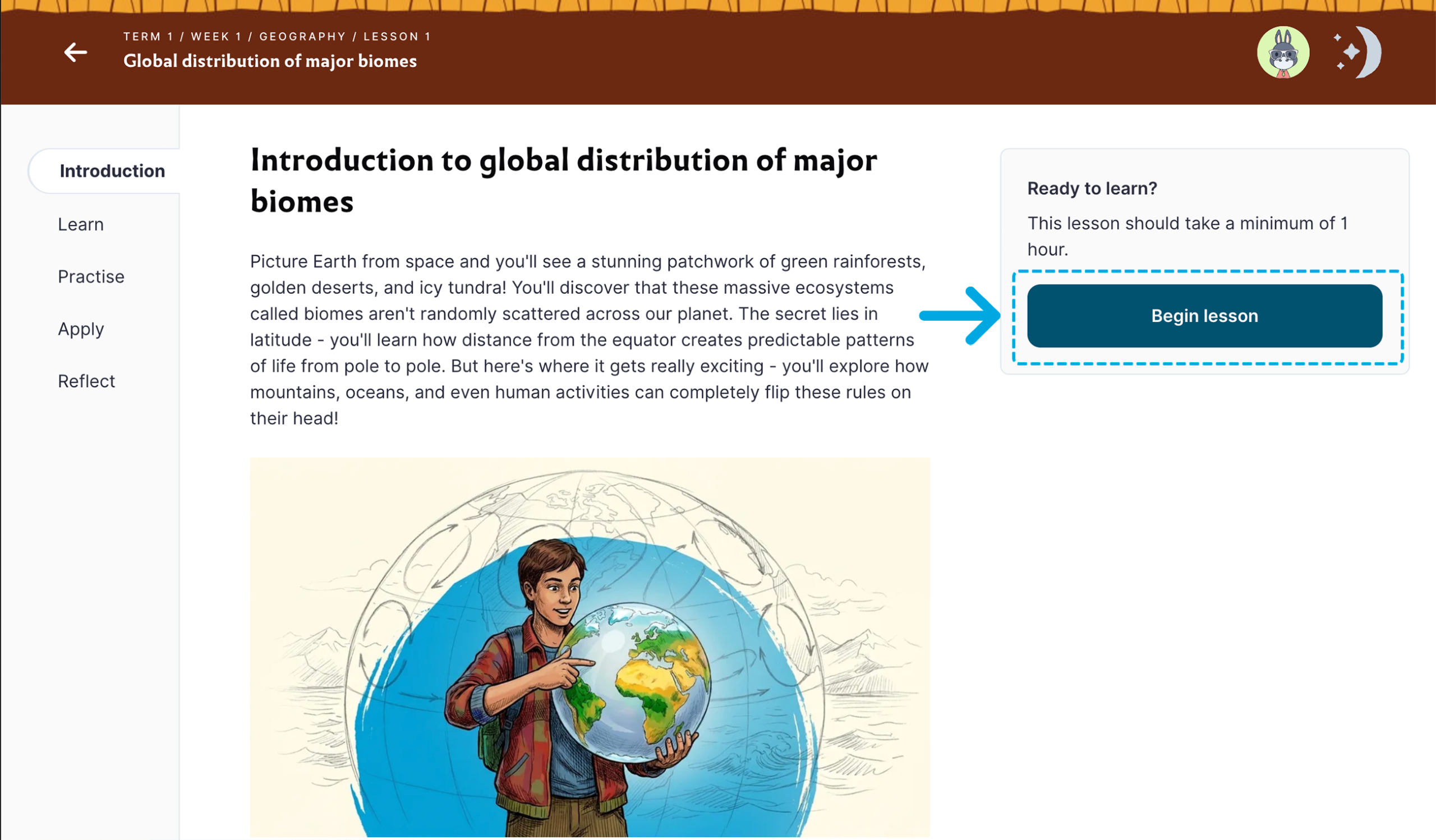

Learn
Study the topic and build your understanding.

Practise
Relate learning to the real-world with a hands-on activity.
Apply
Solidify your new knowledge through interactive activities, or worksheets.

Reflect
Take a moment to reflect on how you felt and what you learned.
Frequently Asked Questions
No. The books in the Euka Primary program have been chosen because they’re widely available. Borrow them from your local library, find read-aloud versions on YouTube, or listen via Audible. If your family loves a book and wants to own it, that’s great, but it’s not required. Just make sure you have the term’s novel sorted before the term begins.
Yes. The Subject view lets you focus on one subject at a time if that suits your child better. The Term view is recommended for families who want a balanced week across all subjects, but both options are always available to you.
Adapt or swap. The Practise section is flexible by design. No Play-Doh? Use paper and pencils. Missing a specific craft supply? Find something similar or skip that activity and return to it later. The goal is engagement and application, not perfection.
The answer sheet is locked by default. You can unlock it through the Parent Portal under your child’s settings. This lets you decide when and how to use it when reviewing your child’s offline work.
Yes, partially. The Learn and Reflect sections are online, but you can download a printable Activity Sheet from the Apply section for offline use. Once complete, take a photo or screenshot of it and upload it as an image (JPG, JPEG, PNG or HEIC, max 5MB) so it’s saved in the portal.
It means flexible, not skippable. There’s no single right way to do it. Your child might draw instead of build, or use different materials. The important thing is that they apply what they’ve learned in a hands-on way. Doing so really helps the learning stick.
Yes. Any work uploaded in the Practise or Apply sections is saved in the portal. You can revisit it at any time by returning to that lesson.
Use the Eko button in the bottom corner of the Primary Student Portal to leave feedback or get in touch. You can also visit the Help Centre for guides, FAQs, and support articles, or chat with the Euka support team directly from there.