

Euka Parent Portal Walkthrough
The Parent Portal is where you manage each child’s enrolment, subjects, learning resources, reports, premium services and billing. This guide covers every section of the portal and what you can do in it.
Home
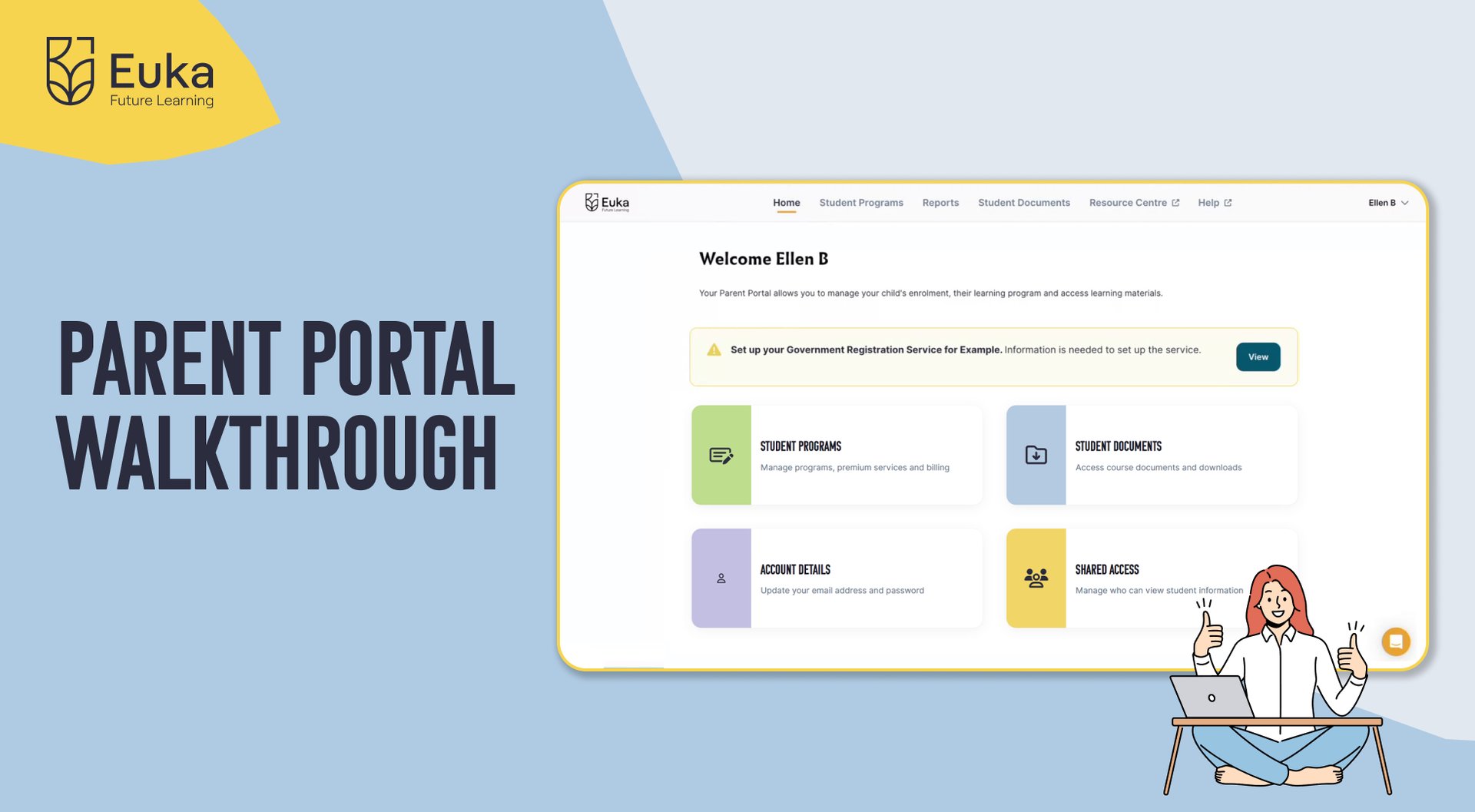
Home is the first screen you see after logging in. It shows anything that needs your attention and links to every other part of the portal.
Notification banners
Banners at the top of Home flag what needs doing, such as setting up the Government Registration Service, an upcoming auto-renewal, a program nearing its end date, a payment that didn’t go through, or subjects still to be chosen. Each banner links straight to the right place.
Quick-access tiles
Tiles below the banners open Student Programs, Student Documents, Account Details and Shared Access. Reports, the Resource Centre and Help sit in the menu across the top of every page.
Student Programs
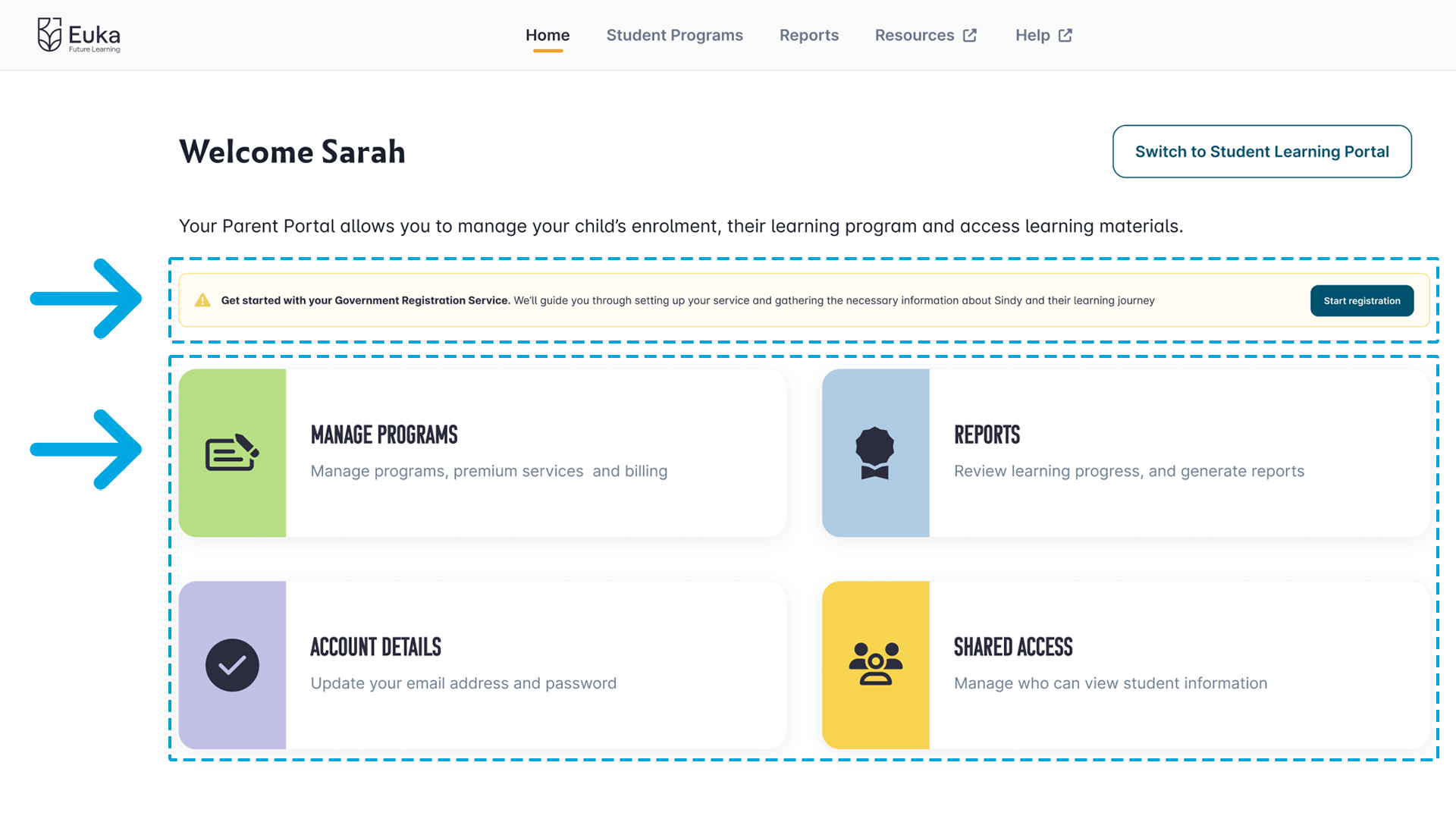
Student Programs lists every child on your account, with their program and any premium services. Select a child to open their program page, which holds their plan details, Grade Details (subjects and student resources), Premium Services and billing.
Plan status and renewal
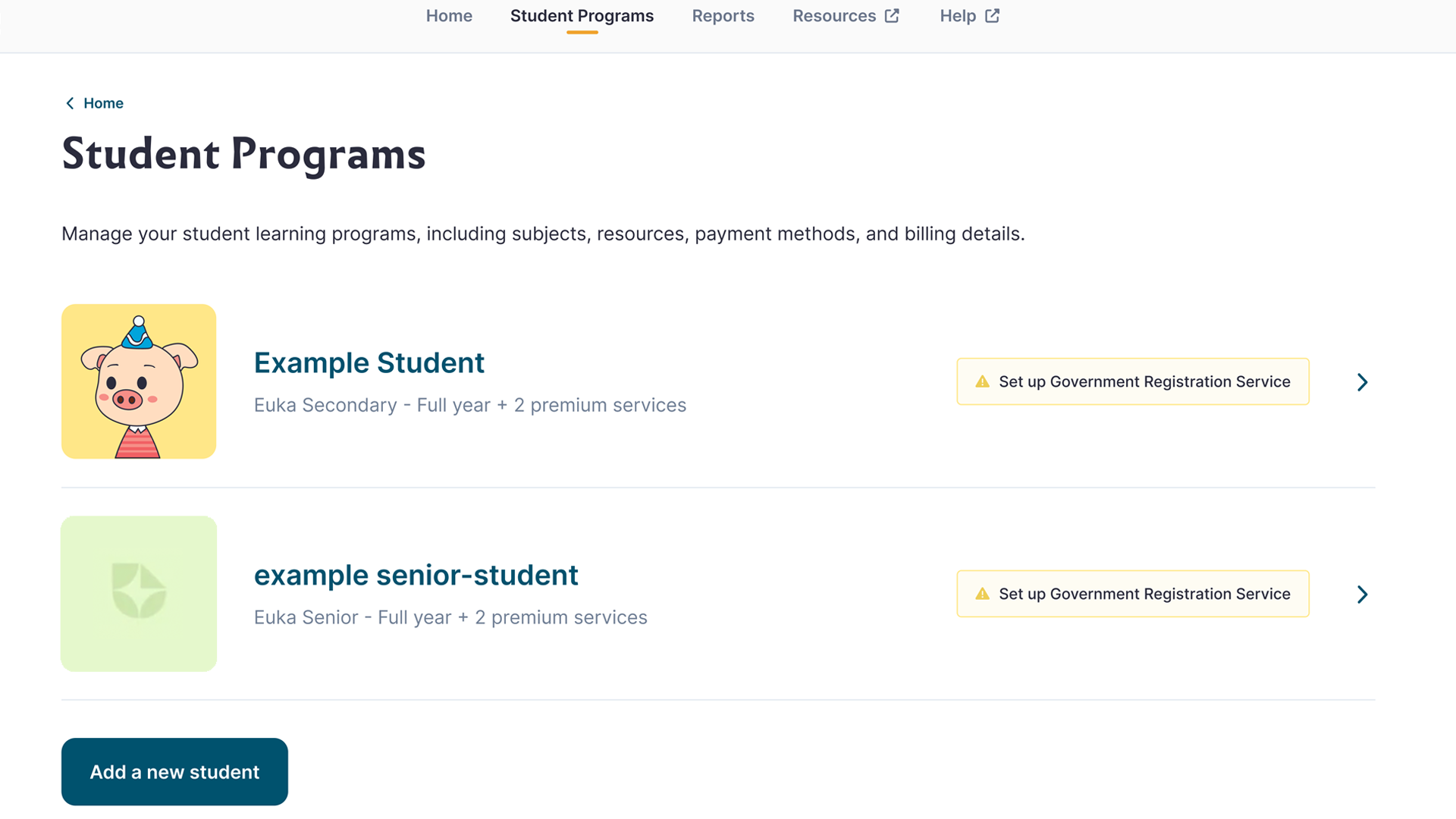
The top of each program page shows your child’s plan and its status. Active means the program is running, Auto-renewal shows when it will next renew, and Access until shows the last day of access.
Not renewing means the program will end on its access date instead of renewing automatically. To keep going into the next grade or term, select Renew and access next grade or term before that date.
Adding another child
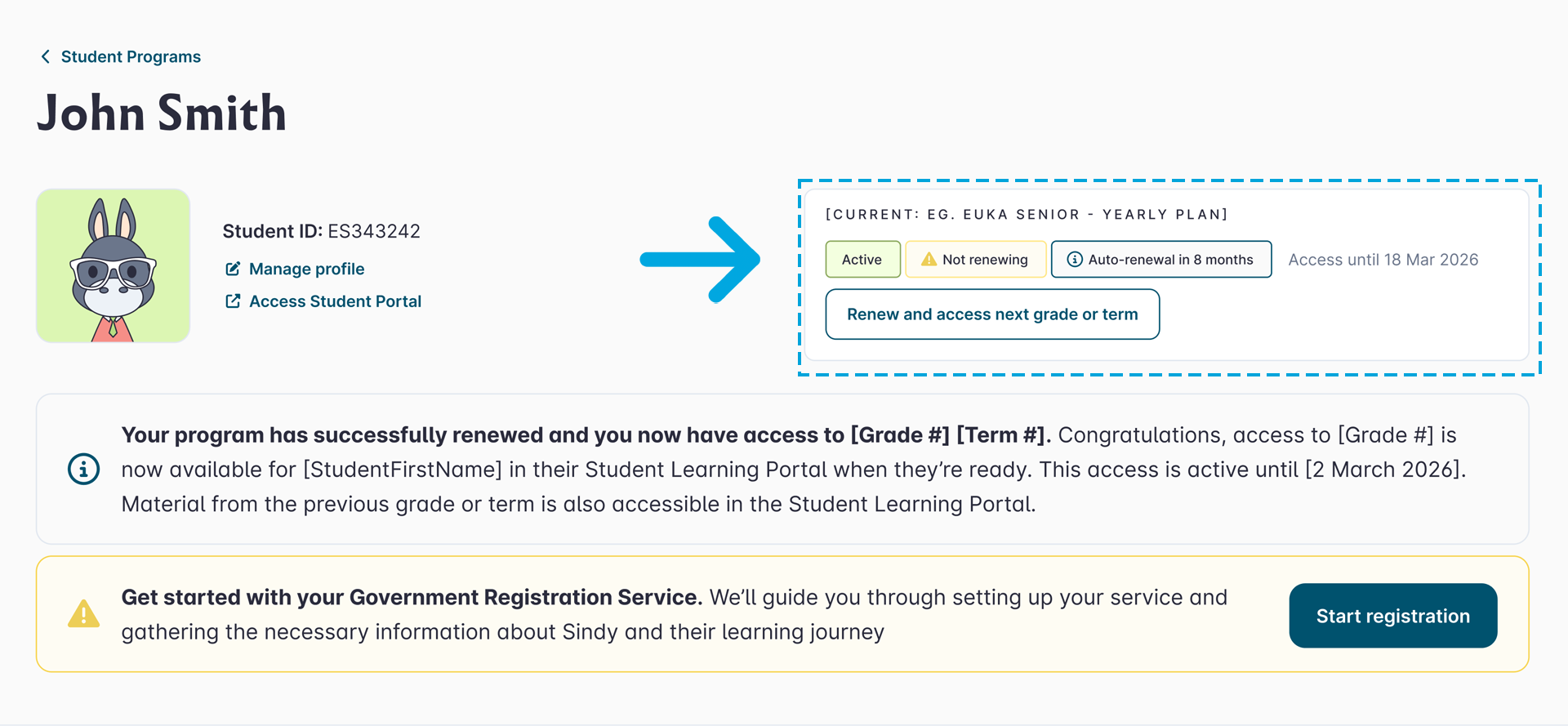
Select Add a new student at the bottom of the list. You’ll go to checkout, and once you’ve enrolled, your new child appears in Student Programs alongside your other children.
Setting up the Government Registration Service
If your child’s program includes the Government Registration Service, select Start registration on their program page. You answer questions about your child, we review them and prepare the documents, and you download them to submit.
Subjects
Find it in Student Programs, on your child’s program page under Grade Details. Subjects lists everything your child studies in the grade and what each subject covers term by term.
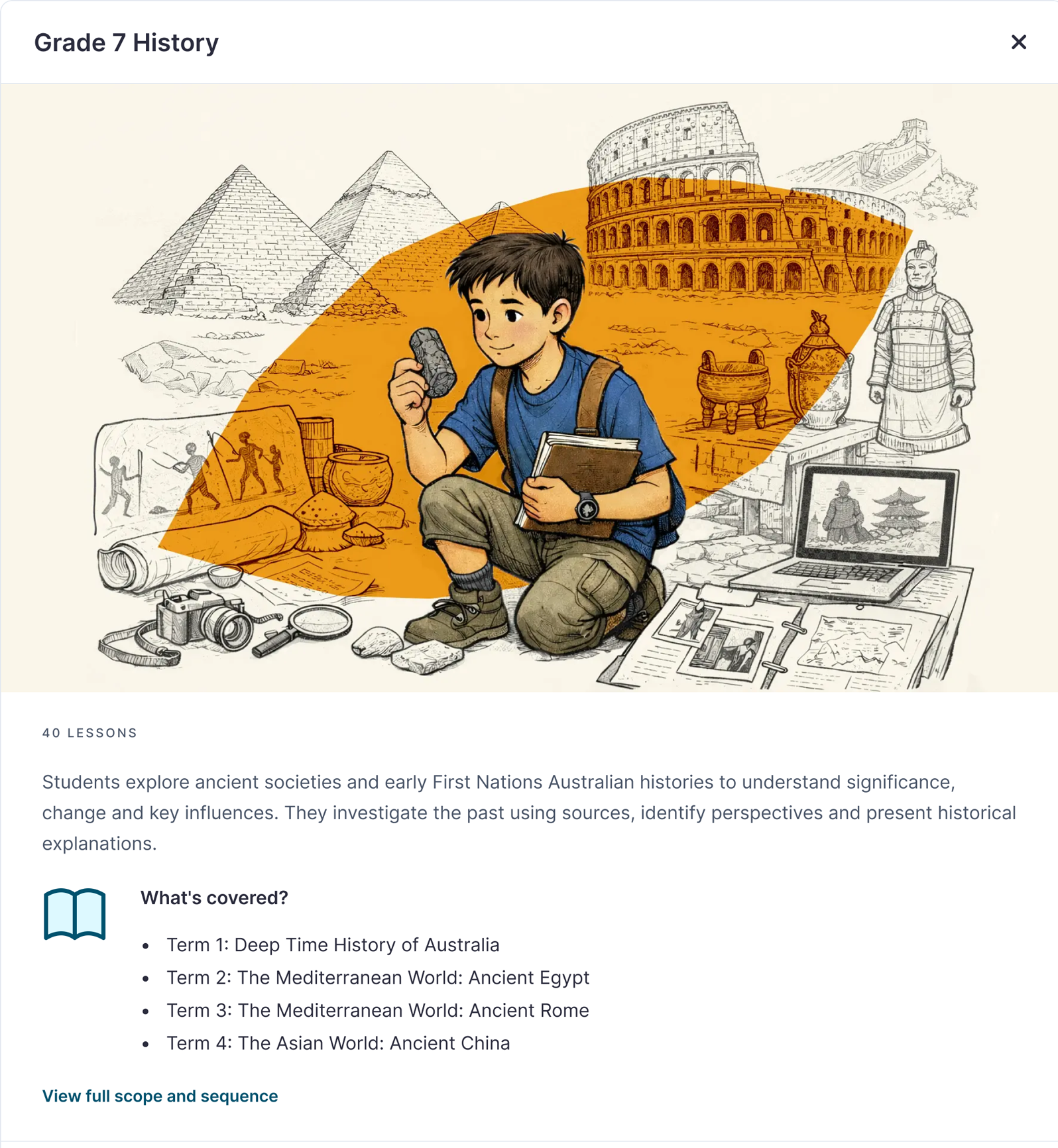
Topics for each term
Select What’s covered? on any subject to see its topic for each of the four terms. Grade 7 History, for example, starts with Deep Time History of Australia in Term 1 and moves on to Ancient Egypt, Ancient Rome and Ancient China.
Tip: check the topics before each term to line up library books, documentaries or an excursion that matches what your child is learning.
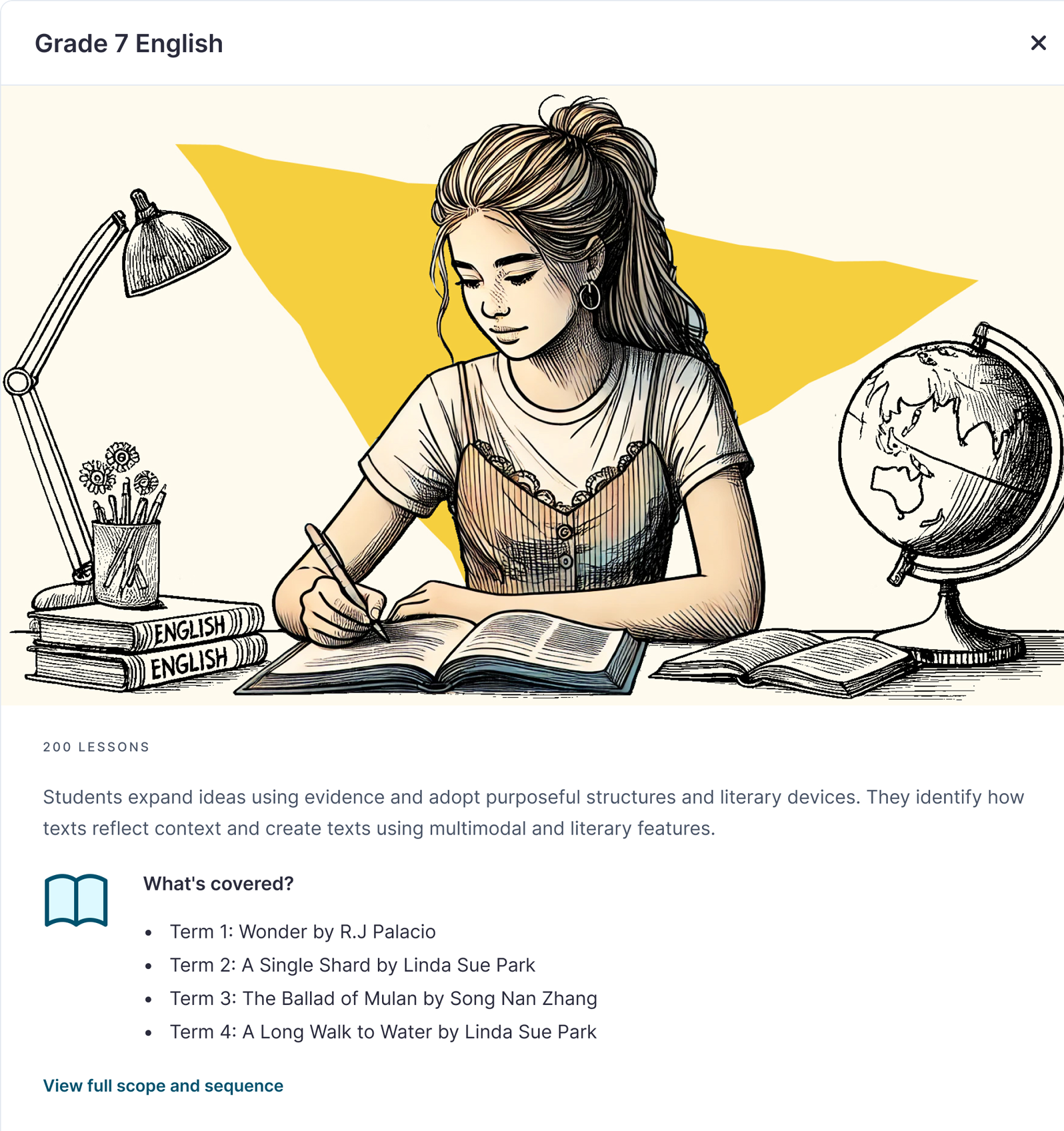
English novels for each term
The English overview names the novel studied in each term. Grade 7 reads Wonder by R.J. Palacio, A Single Shard by Linda Sue Park, The Ballad of Mulan by Song Nan Zhang and A Long Walk to Water by Linda Sue Park.
Tip: get the novel before the term starts. Buy it, download it or reserve it at your local library.
Choosing electives in Grades 9 and 10
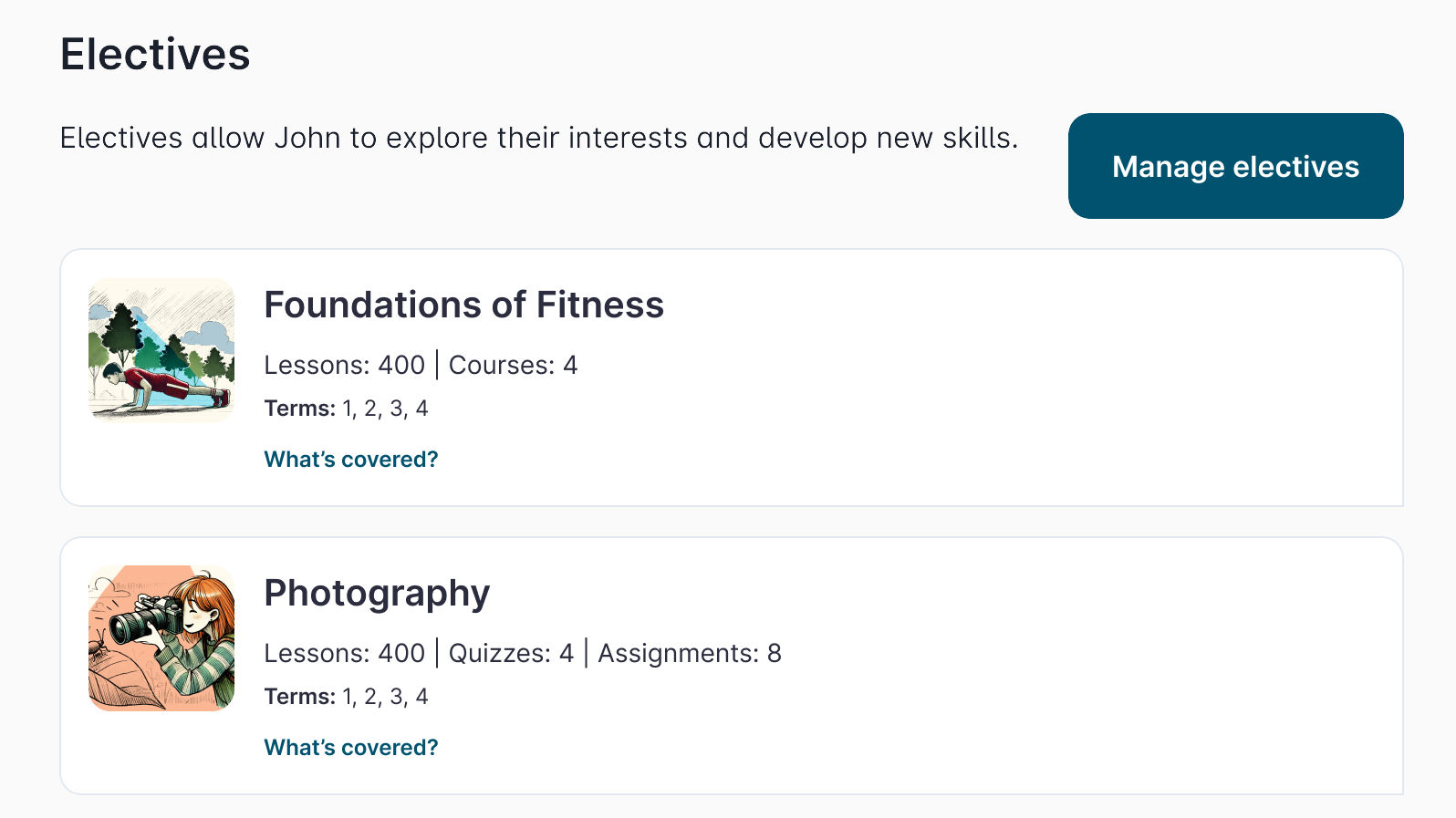
Students in Grades 9 and 10 study two electives alongside their core subjects. Select Manage subjects, then browse and add electives, or accept the recommended pair. You can save your choices and finish later.
Choosing senior subjects in Grades 11 and 12
Senior students choose six subjects, and English is compulsory. You can change subjects for free within two weeks of purchasing. After that, each subject change costs $75.
Student resources
Find it in Student Programs, on your child’s program page under Grade Details. Student resources holds the printable activity and answer sheets for every lesson and the scope and sequence for the grade.
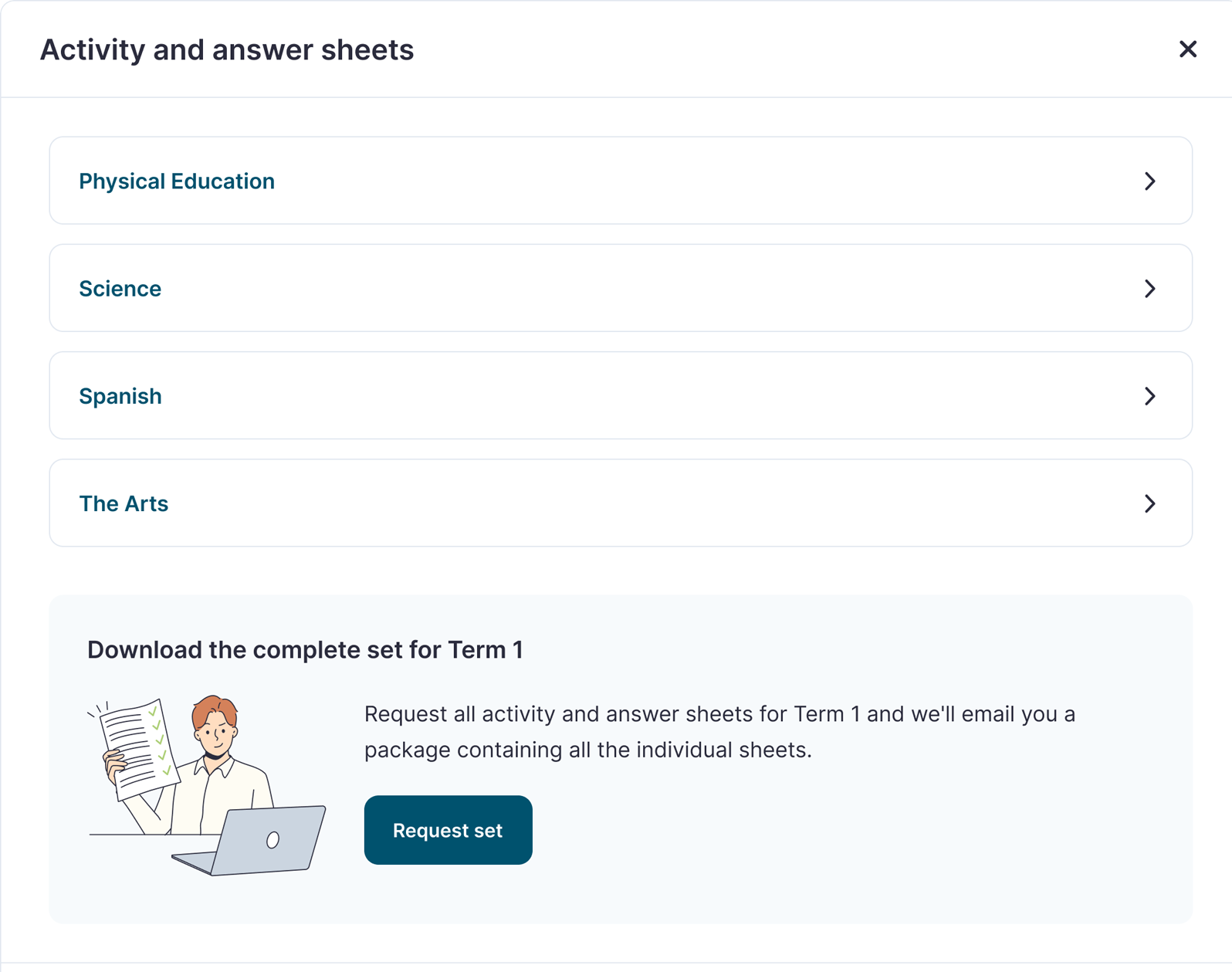
Activity and answer sheets by subject
Each lesson’s Apply section has a digital activity, plus a printable activity sheet and answer sheet. Open Activity and answer sheets, pick a term and a subject, and download the sheets you need.
Download a full term pack
To print a whole term at once, select Request set at the bottom of the term. We prepare every activity and answer sheet for that grade and term, across all subjects, and email you a download link.
Answer sheet permissions
Answer sheets are locked by default. When your child tries to download one, we email you a code, and you choose whether to share it.
If your child would benefit from marking their own work, tick the box at the bottom of Activity and answer sheets that lets them download answer sheets without permission, then select Save. The setting applies to one grade at a time.
Scope and sequence
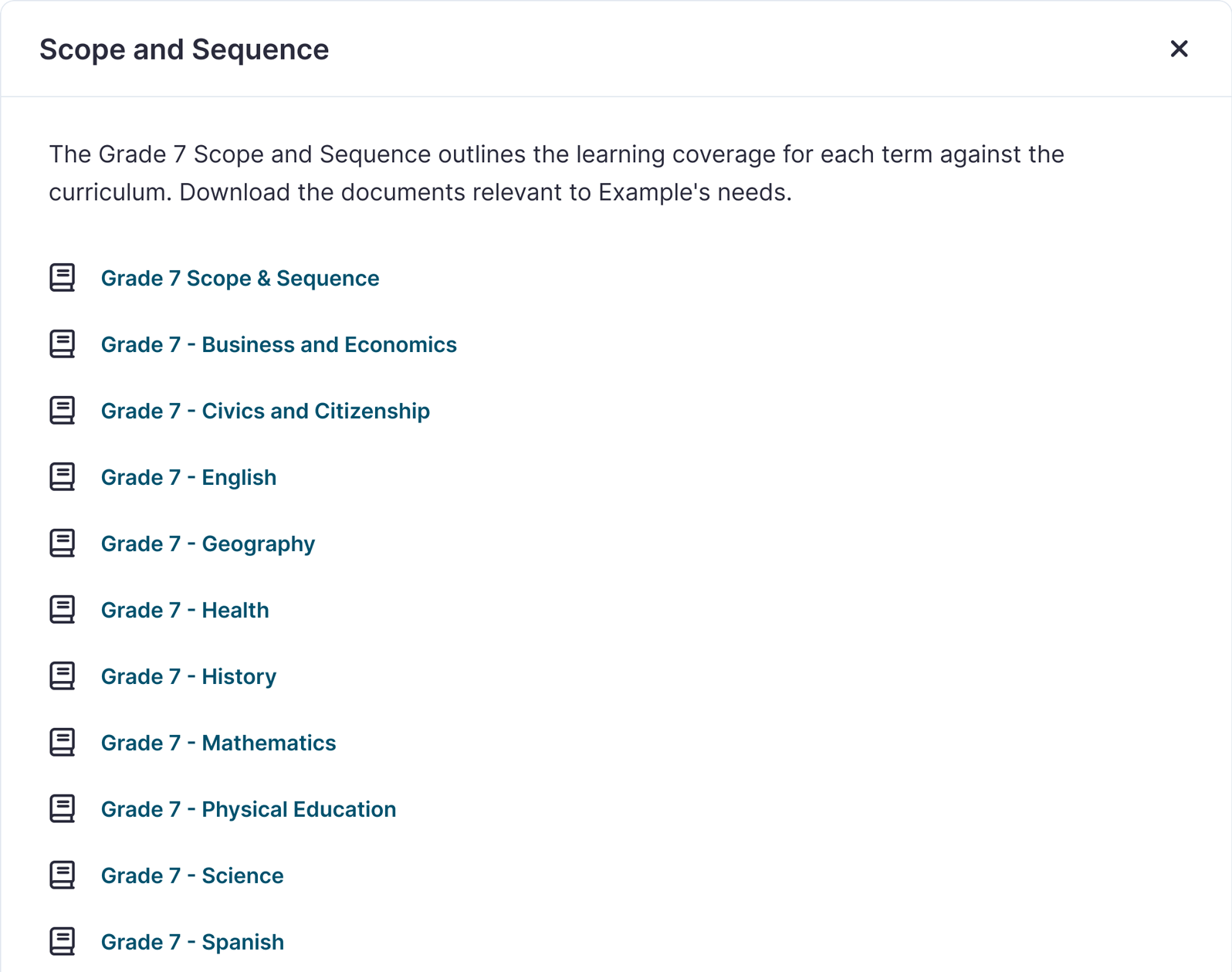
A scope and sequence is the learning plan for the grade. It maps what each subject covers, term by term, against the Australian Curriculum. Download one document for the whole grade or one for each subject.
Tip: if you’re registering for home education yourself and your state asks for a learning plan, include these documents. If you have the Government Registration Service, they’re already included in your registration documents.
Reports
Open Reports from the top menu, or select View reports under Grade Details. Reports tracks your child’s progress through the year and is where you build their end-of-year report.
Progress by term and subject
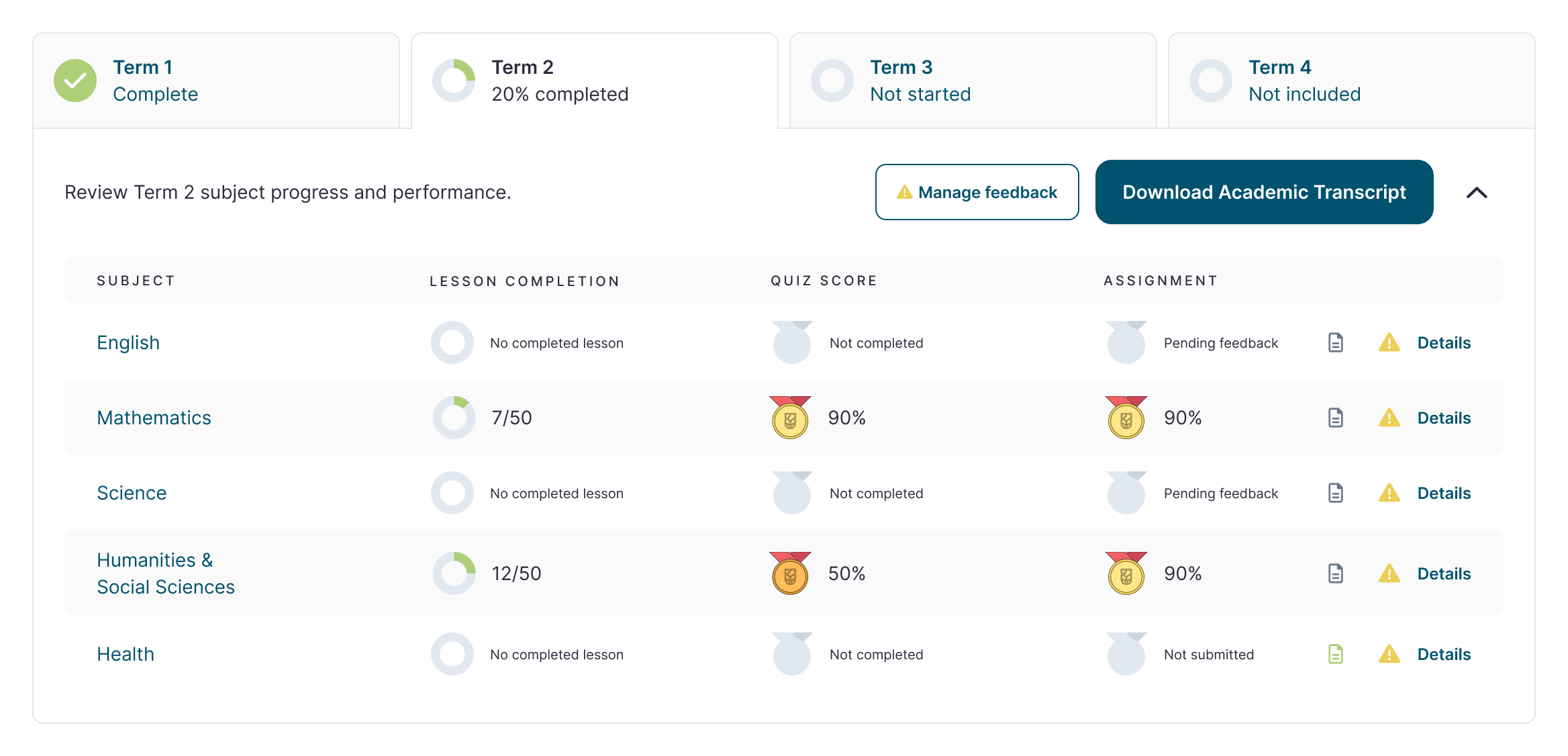
See lessons completed across the year, then open any term. A circle next to each subject fills as lessons are finished. Open a subject for quiz results, assignment details and the curriculum outcomes it covers.
Term feedback, for every family
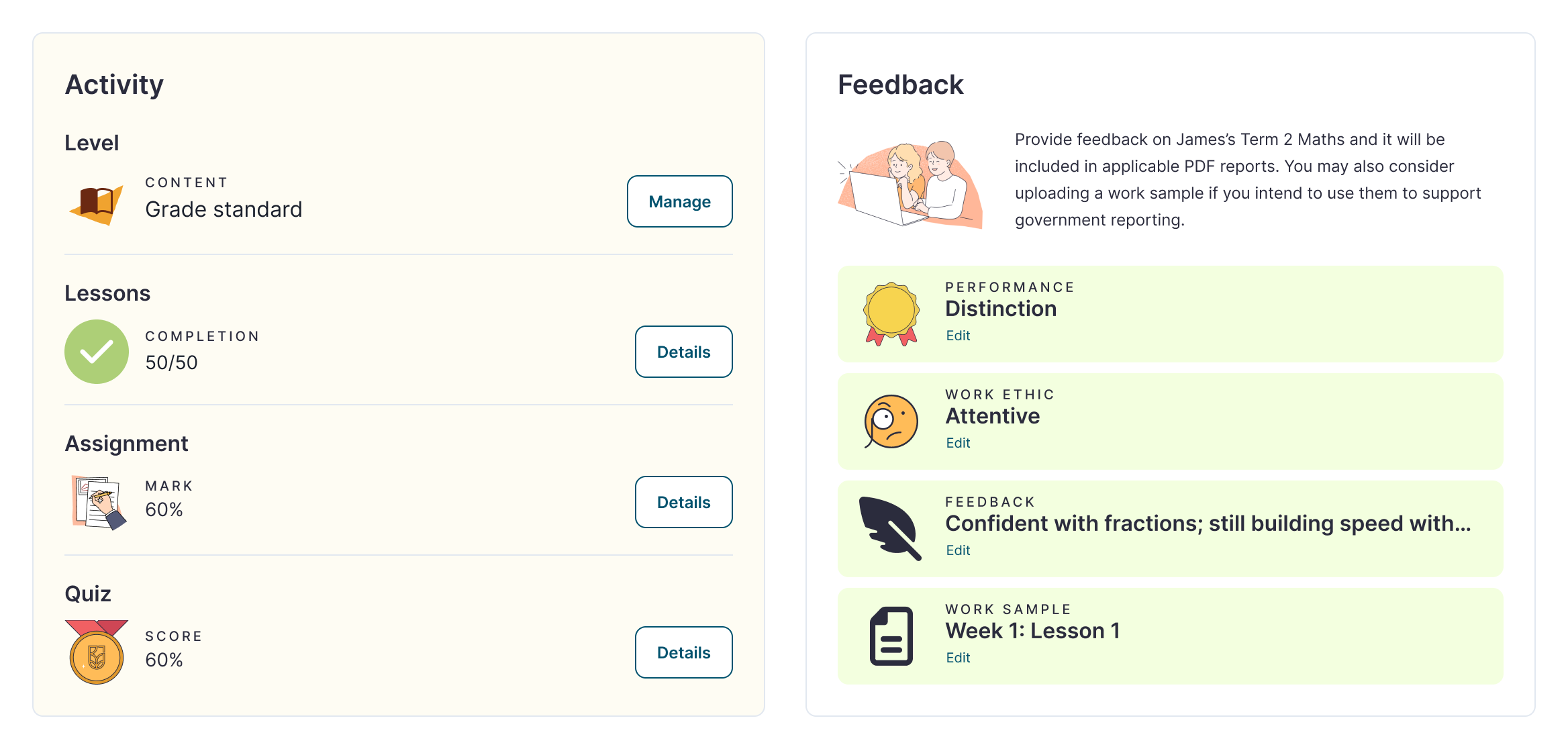
At the end of each term, open each subject and add your assessment of Performance and Work ethic, plus written Feedback on where your child thrived and what they found tricky. Everything you add carries into their end-of-year report. Want to add work samples to the report? See how Premium Reporting works.
Achievement standards to guide your feedback
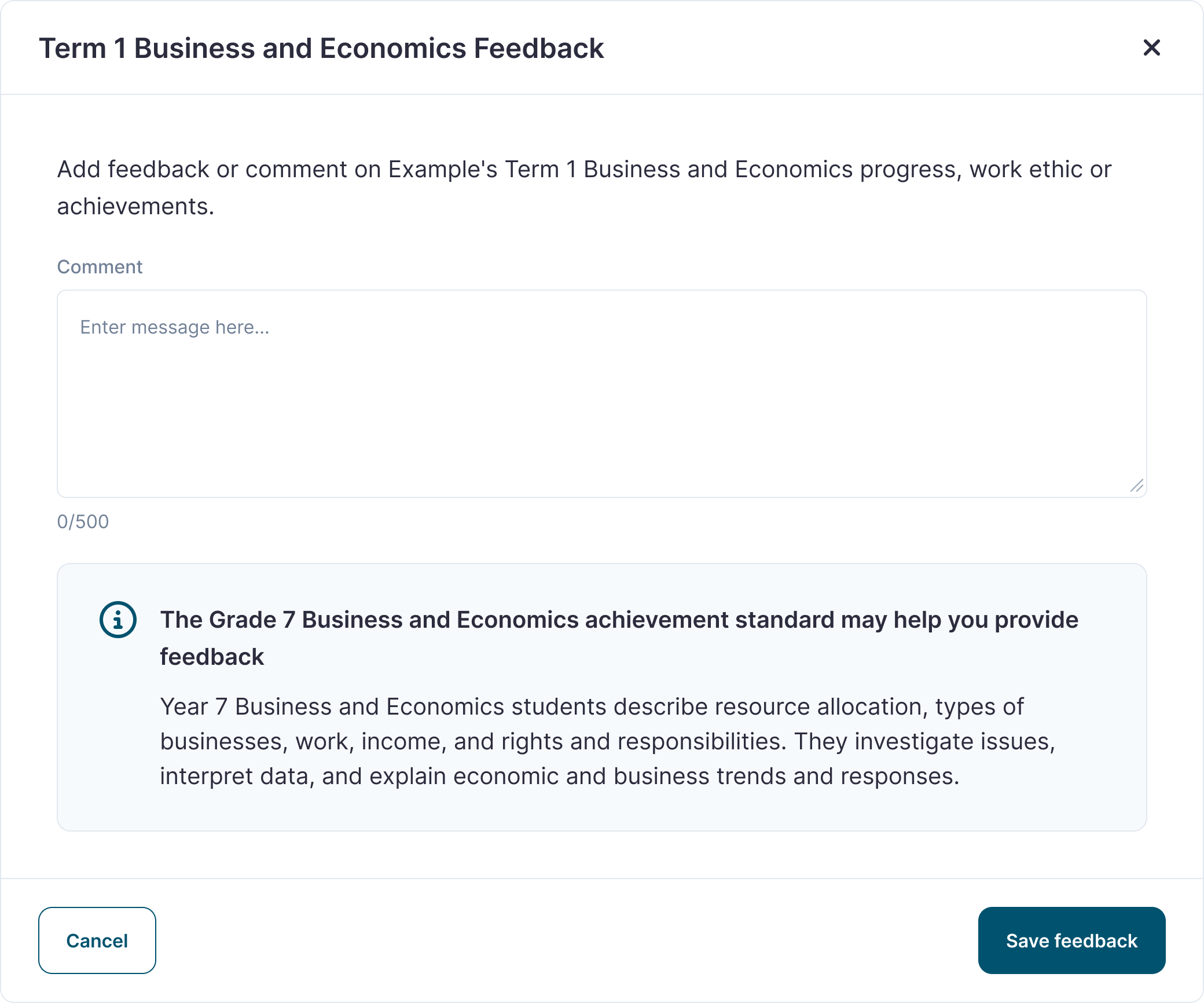
When you add feedback, the achievement standard for that subject and grade appears below the comment box. It describes what students are expected to show by the end of the year, so you can compare your child’s work against it before you write.
Work samples, with Premium Reporting
Premium Reporting lets you upload work samples during the term: a photo of a model, a PDF of a story, a picture of a painting. Add a short note on what your child has improved and what they’re still working on. Samples are stored with the report, so there’s nothing to keep at home.
Academic Transcript
Once feedback is in for every subject in a term, select Compile report, then Download Academic Transcript. A transcript without work samples isn’t enough evidence for government reporting on its own. Premium Reporting allows you to upload your work samples.
Premium Services
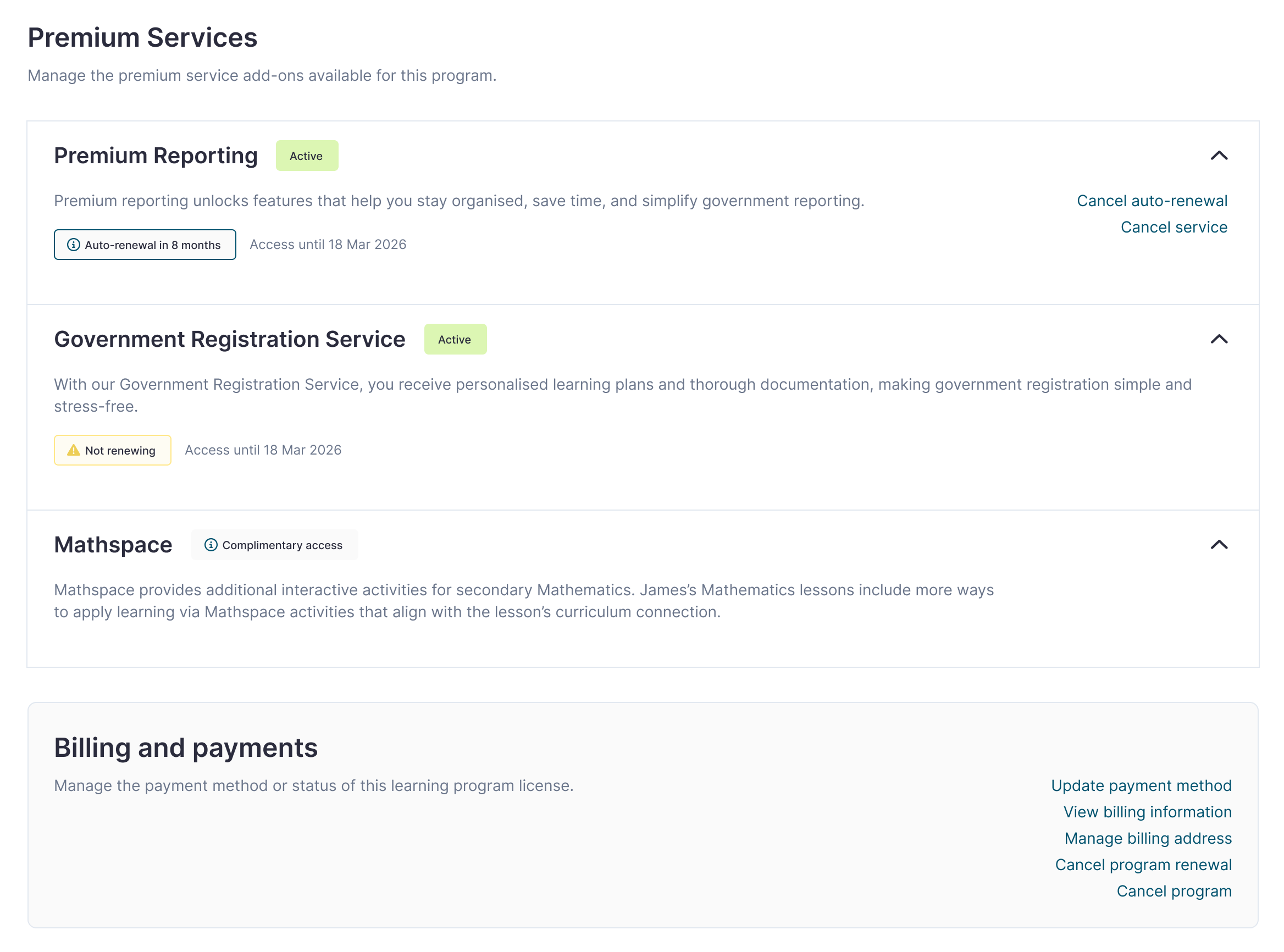
Find it at the bottom of your child’s program page in Student Programs. Premium Services shows the add-ons on your child’s program and the learning tools that come with it.
Registration and reporting add-ons
The Government Registration Service and Premium Reporting each show whether they’re active on your child’s program. If you didn’t add them when you enrolled, you can add them here.
Complimentary learning tools
Some programs include access to other learning tools at no extra cost, marked Complimentary access. Grades 7 to 10 include Mathspace, and Foundation to Grade 6 include Matific.
Billing and payments
Find it below Premium Services on your child’s program page. Only the parent who manages the account sees billing.
- Update payment method
- View billing information
- Manage billing address
- Cancel program renewal: your child keeps access until the end date, and the program doesn’t renew
- Cancel your active program or request a refund
Account Details
Open Account Details from the tile on Home to manage your own login and profile.
Your name
Update your first name, last name and the display name shown in the portal, then select Update details.
Email address
Select Change email and enter the new address. We send a four-digit security code to it to confirm the change.
Password
Select Change password and enter your current and new password. Locked out? Use Forgot password? on the login screen to get a reset link by email.
Help and support
Help in the top menu takes you to the Help Centre for guides and answers to common questions. To message the Euka support team, use the chat button in the bottom corner of any page. Euka doesn’t provide tutoring, but the team can help with anything to do with your account, the portal or your child’s program.
Frequently Asked Questions
The program will end on its access date instead of renewing automatically. To continue, open your child’s program in Student Programs and select Renew and access next grade or term before that date.
Go to Student Programs and select Add a new student. You’ll complete checkout, and your new child will appear in Student Programs with your other children.
Yes. Open your child’s program in Student Programs and scroll to Premium Services at the bottom of the page.
Every family can track progress, add term feedback and download an Academic Transcript. Premium Reporting adds work samples, which are stored with your child’s report and give you the evidence of learning that government reporting asks for.
Open Activity and answer sheets under Student resources, tick the box to allow answer sheet downloads without permission for that grade, and select Save.
Yes. In Activity and answer sheets, choose the term and select Request set. We email you a link to download every activity and answer sheet for that term in one package.
It’s there for every family, but it matters most if you’re registering for home education yourself and need a learning plan. The Government Registration Service includes it in your registration documents.
Yes. Invite them from Shared Access. They can view your child’s program, reports and academic documents, but billing, renewals, subject choices and invitations stay with you.
No. For help with your account, the portal or your child’s program, use the chat button in the bottom corner of the Parent Portal or visit the Help Centre.